


How to Find PlayStar Games on Pirate777 Malaysia: Provider Chip Guide
The single most reliable way to find a PlayStar title on Pirate777 is to select the PlayStar provider chip first, then browse or text-search within that filtered set. This guide walks through the navigation path on browser (desktop and mobile), the demo-mode access, language switching, and the few edge cases where text-search alone falls short across the platform’s 13 providers and 2,500+ titles.
The Provider-Chip-First Rule
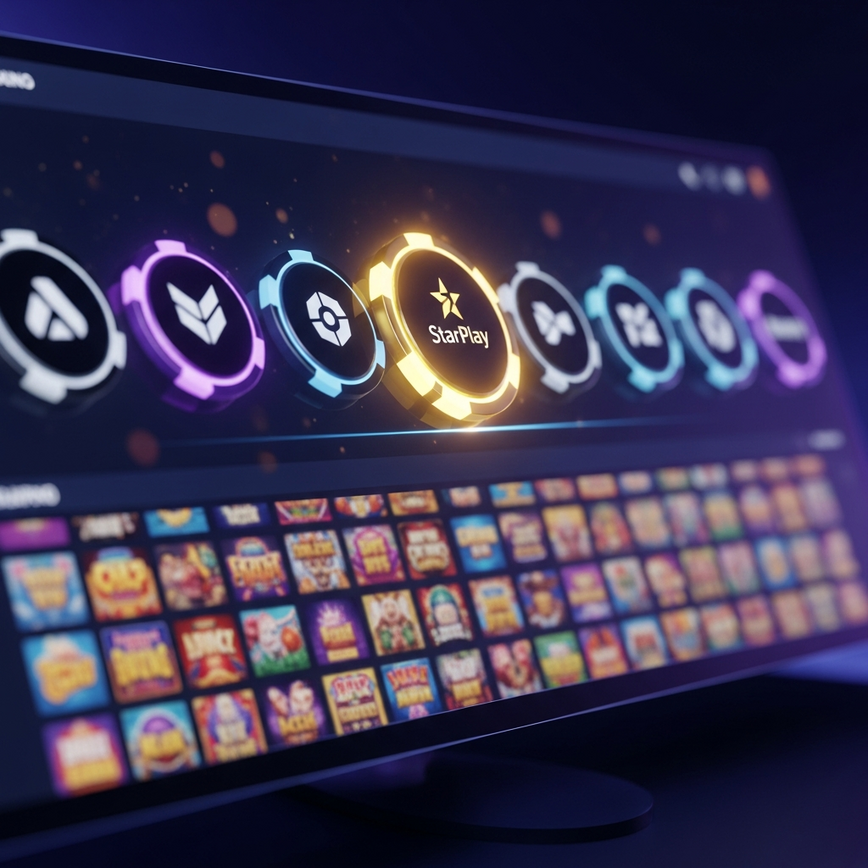
Pirate777’s main lobby shows a horizontal row of provider chips at the top of the slots section — Apollo x10, Caesar (i8), Cosmo Play, Habanero, Jili, JDB, Lucky365, Mega888, Monkey King, Pragmatic Play, PG Soft, PlayStar x10, Playtech and a handful of others depending on rotation. Each chip filters the catalogue down to that single provider’s titles.
Why provider-first matters: many slot title words (“Lucky”, “Fortune”, “Caishen”, “Mahjong”, “Dragon”) recur across multiple providers’ libraries. Search “Mahjong Ways” without a provider filter and you can land on PG Soft’s Mahjong Ways 1 / 2 instead of PlayStar’s Mahjong Ways 3 / 3+. Search “Caishen” and Pragmatic Play, Jili and PlayStar all return matches. The provider chip eliminates the noise.
Step-by-Step on Browser (Desktop)
- Open Pirate777 in your browser and log in (or stay logged in via the previous session).
- From the main lobby, scroll the provider chip row at the top of the slots section until you find PlayStar x10.
- Click the PlayStar x10 chip. The catalogue refilters to show only PlayStar titles — 84 games for the current catalogue, displayed as game-card tiles.
- From here you have three navigation paths:
- Browse by tile — scroll the grid, tap any title to launch. Hot-tagged titles (orange flag) surface near the top of the grid.
- Sort / filter — sort by Hot, by New, or alphabetical. Useful for finding new releases without scrolling the full 84.
- Text-search within filter — the search input now operates against the filtered PlayStar set only. Type partial title (e.g. “caishen”) and the matches narrow accordingly.
- Tap the title card to launch. The game opens in the same browser tab (or a popup, depending on the title — see below).
Step-by-Step on Browser (Mobile)
The mobile flow is the same logical sequence but compressed:
- Open Pirate777 in mobile browser (Safari on iOS, Chrome on Android). No APK download required.
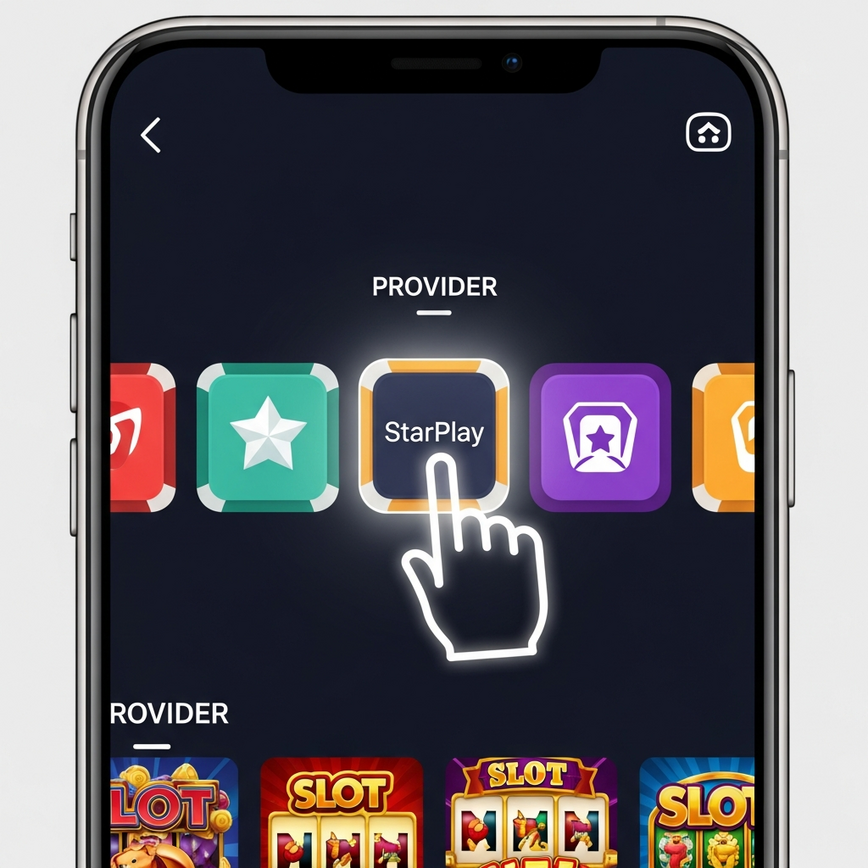
- Tap the slots section. The provider chips appear as a horizontally-scrollable row near the top.
- Swipe the chip row left to find PlayStar x10 and tap to select.
- The catalogue refilters. Mobile shows the same 84 PlayStar titles as the desktop view but in a denser tile grid.
- Tap to launch. Most PlayStar titles run in landscape mode on mobile — rotate your phone or accept the in-game prompt to switch orientation.
Demo Mode — Free Play Before Real-Money Bet
Every PlayStar title on Pirate777 has a free demo mode. The demo mode is the most useful pre-bet tool — it lets you try the volatility curve, see how the feature triggers, and understand the bet selector without committing real money.
Demo access path:
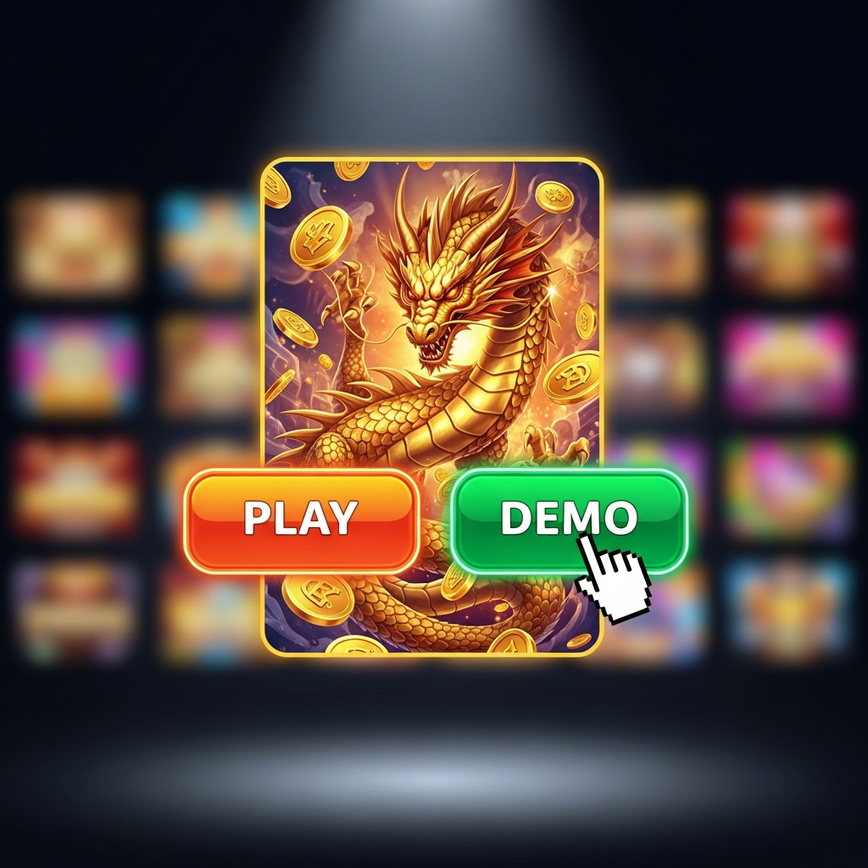
- Hover over the game card (desktop) or long-press the game card (mobile).
- Two buttons appear: Play (real-money) and Demo (free play).
- Tap Demo. The game launches in demo mode with a fake credit balance — usually RM5,000 or RM10,000 worth of demo chips.
- Play as long as you want. Demo mode does not deduct from your real wallet and does not award real winnings — it’s a learning environment.
Recommendation: spend 5 to 10 minutes in demo before any first-time PlayStar title. Especially important for the Feature Buy series (where the buy mechanic can confuse first-time users) and the Mahjong Ways line (where the cascading-multiplier behaviour rewards understanding before real-money bet sizing).
Language Switching
Pirate777 supports English, Bahasa Malaysia and Simplified Chinese (中文). The language switcher is in the top-right of the platform header — a small flag / globe icon. Switching language changes the platform UI (menus, account pages, deposit / withdrawal flows), not the in-game language for individual slot titles.
Most PlayStar slots are published with English UI as the default, with a smaller subset supporting in-game Chinese language switching. For the Caishen series, Mahjong Ways 3 / 3+ and the Chinese-fortune titles, in-game Chinese is more commonly available. Use the cog / settings icon inside the launched game to access in-game language switching where available.
Edge Cases
Title Not Appearing on Provider Chip
If you expect a PlayStar title but cannot find it after filtering by the provider chip, two checks:
- Sort by New / All — some titles may not appear under default “Hot” sort. Switch sort to All or alphabetical.
- Refresh the lobby — provider catalogues update periodically. If a new release just dropped, a hard refresh (Cmd+Shift+R / Ctrl+F5) of the browser tab may be needed to see it.
If the title is genuinely missing from the platform, it may have been temporarily de-listed by the studio or the platform. PlayStar’s full provider-side catalogue is roughly 200+ titles; Pirate777 currently surfaces 84 of these — the platform-side curation focuses on Malaysian-market relevance.
Game Launches in a Popup Window
A handful of PlayStar titles open in a popup browser window rather than within the platform tab. This is normal — it does not affect gameplay or wallet integration. If your browser’s popup blocker prevents the launch, add pirate777.org to the popup allow-list in browser settings.
RTP Display Inside the Game
To verify a game’s published RTP from inside the title:
- Launch the game.
- Open the in-game menu (cog or hamburger icon, typically top-left).
- Find “Game Info” or “Paytable” — the RTP value is published there.
- Cross-check against PlayStar’s official site (playstar.com.mt) or the Pirate777 RTP reference.
If the in-game RTP does not match either source, that’s a real flag — but in 18 spot-checks across the PlayStar 97% tier on 2026-04-22, all values matched the published reference.
From PlayStar to Other Providers
If you decide PlayStar’s catalogue is not the right fit — for example, if you want the documented multiplier mechanic of Apollo x10 rather than PlayStar’s varied standard format, or if you want PG Soft’s specific Mahjong Ways 1 / 2 line rather than PlayStar’s 3 / 3+ — the same provider-chip navigation logic applies. Tap the chip you want, browse the filtered catalogue. Each provider’s clusters and headline titles are documented in the provider guides linked from the Game Academy.
PlayStar Navigation — FAQ
Many slot title words recur across providers’ libraries — “Lucky”, “Fortune”, “Caishen”, “Mahjong”, “Dragon” are all shared across multiple studios. A blank text search will return cross-provider matches that are not what you want. Filtering by provider chip first narrows the search space to only that studio’s titles, which eliminates the noise.
No. Pirate777 runs in any modern mobile browser — Safari on iOS, Chrome on Android — without an APK download. PlayStar titles render via HTML5 / WebGL and stream game state via WebSocket; the technical mechanics are covered in How Browser Slots Work Without an APK.
Yes. Every PlayStar title on Pirate777 has a free demo mode accessible by hovering over the game card and selecting Demo instead of Play. Demo mode uses fake credits and does not connect to your real wallet — useful for learning a game’s mechanic before committing real-money bet sizing.
Not always. The Pirate777 platform UI supports English, Bahasa Malaysia and Simplified Chinese. Individual games carry their own language settings — most PlayStar titles default to English UI, with the Chinese-fortune subset more commonly offering in-game Chinese switching via the cog / settings icon inside the game.
The game launches directly via the URL, bypassing the provider chip filter. Bookmarking a specific title is fine — but if you want to find related titles afterwards, return to the platform lobby and use the provider chip rather than text-searching.
Platform navigation verified on Pirate777 desktop and mobile browser as of 2026-05-25. UI elements may shift with platform updates. Gambling is for entertainment only. Set deposit and session limits before playing. Players must be 18+. BeGambleAware.org